Using Formulas in Data Transformations (Mappings)
-
Category
- Data Transformation
- Mappings
- Utility
Available: Starter and Premium
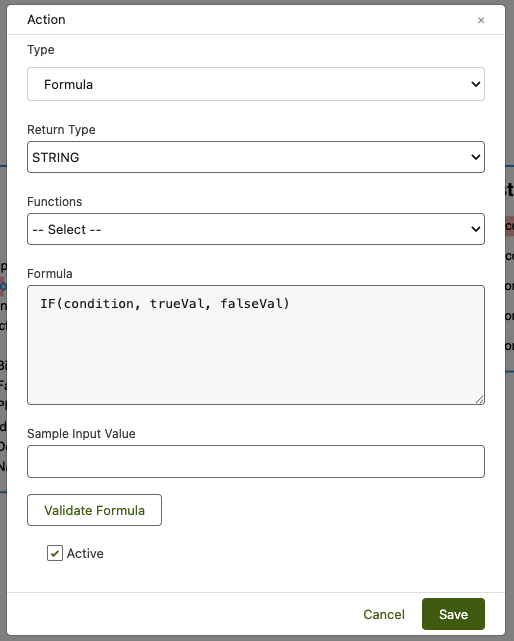
Formula Builder UI
Overview
Formulas let you transform incoming values during field mappings without writing Apex.
You define a Formula, choose a Return Type, and (optionally) pick from built-in Functions. The output of the formula becomes the value that is written to the target field.
Typical uses:
- Clean/standardise strings (trim, upper/lower, replace).
- Conditional branching (map one of two values based on a condition).
- Math on numeric inputs (rounding, addition, percentages).
- Compose values (concatenate fields, build keys).
- Safe defaults (fallbacks when inputs are blank).
Where to use
In the Mapping editor, add an Action of type Formula on a field mapping.
The formula runs at write time for that field and its result is passed forward to the target.
Action Dialog Fields
-
Type
Select Formula. -
Return Type
Choose the expected output type for the target field:STRING·INTEGER (NUMBER)·BOOLEAN·DATE·DATETIME·DECIMAL·LONG·DATETIME·DOUBLE
-
Functions
Picker of common helpers (auto-inserts the function template into the editor). -
Formula
Enter the expression. Example:
IF(ISBLANK(STRING(value)), "Unknown", UPPER(STRING(value)))
-
Sample Input Value (optional)
A quick way to test your formula with a sample value. -
Validate Formula
Compiles the expression and evaluates it against the sample input (when provided). -
Active
Toggle to enable/disable the action without removing it.
Supported Function Patterns
Notes: The engine supports familiar Excel/Salesforce-style functions. Use the Functions picker to insert templates quickly.
Conditionals
-
IF(condition, trueVal, falseVal) -
CASE(expr, when1, then1, when2, then2, default)
Text
-
TRIM(STRING(value))·LOWER(STRING(value))·UPPER(STRING(value)) -
CONCAT(a, b, ...) -
LEFT(STRING(value), n)·RIGHT(STRING(value), n)·SUBSTRING(STRING(value), start, len) -
REPLACE(STRING(value), target, replacement) -
LEN(STRING(value))·CONTAINS(STRING(value), fragment) -
VALUE(STRING(value))← convert to number
Numbers
-
ROUND(DECIMAL(value), scale)·ABS(DECIMAL(value)) -
FLOOR(DECIMAL(value))·CEILING(INTEGER(value)) -
Basic math operators:
+ - * /and parentheses()
Dates
-
TODAY()·NOW() -
DATE(year, month, day) -
ADD_DAYS(DATE(value), n)·ADD_MONTHS(DATE(value), n) -
FORMAT_DATE(DATE(value), "yyyy-MM-dd")
Booleans
-
AND(a, b, ...)·OR(a, b, ...)·NOT(a) -
ISBLANK(STRING(value))·ISNUMBER(STRING(value))·ISDATE(STRING(value))
Notes: Exact availability may vary by version. Use Validate Formula to confirm.
Referencing Inputs
-
In most mappings the engine provides the current input value as
value.Example:
IF(ISBLANK(STRING(value)), "N/A", TRIM(STRING(value)))
Notes: You transform (type cast) your input value (the value from source) to the data type by wrapping it in parentheses, for example:
- STRING(value)
- INTEGER(value)
- BOOLEAN(value)
- DECIMAL(value)
- DATE(value)
- DATETIME(value)
-
When your mapping step exposes multiple fields, use the field tokens offered by the editor (insert from the UI) and compose:
CONCAT(AccountName, " - ", STRING(value))
Examples
1) Normalise phone
REPLACE(REPLACE(REPLACE(STRING(value), " ", ""), "(", ""), ")", "")
2) Map stage to probability
CASE(UPPER(STRING(value)), "PROSPECTING", 0.1, "NEGOTIATION", 0.7, "CLOSED WON", 1.0, 0.0)
3) Friendly fallback
IF(ISBLANK(STRING(value)), "Unknown", input)
4) Build external key
CONCAT(UPPER(TRIM(STRING(value))), "-", RIGHT(YEAR(TODAY()), 2))
5) Clamp discount
MIN(ROUND(DECIMAL(value), 2), 0.5)
6) Date display
FORMAT_DATE(DATE(value), "yyyy-MM-dd")
Validation & Testing
-
Enter your expression.
-
Provide a Sample Input Value (optional but recommended).
-
Click Validate Formula.
-
You’ll see compile/runtime errors (e.g., unknown function, type mismatch).
-
Fix and re-validate until it passes.
-
Notes: Validation uses the same engine that runs during mappings.
Best Practices
-
Match the Return Type to the target field (e.g.,
NUMBERfor numeric fields). -
Guard blanks with
IF(ISBLANK(...), default, value). -
Normalize inputs (e.g.,
TRIM,UPPER) to reduce downstream errors. -
Keep formulas small and readable; split multiple transformations into separate actions if needed.
-
Test with real-world samples (long strings, special characters, nulls).
Troubleshooting
-
“Unknown function …”
Use the Functions picker to insert a supported template, or check spelling/casing. -
Type mismatch (e.g., string → number)
Convert explicitly withVALUE()or adjust Return Type. -
Blank results
Add guards withISBLANKand defaults inIF. -
Date format errors
UseFORMAT_DATE()for display strings or ensure the return type isDATE/DATETIMEwhen writing to date fields.
Notes:
-
Formula Actions run synchronously during mapping for the field they’re attached to.
-
They are executed before write operations, so the transformed value is what’s persisted.
-
The same engine powers Validate Formula and runtime execution.